RunMyProcess methodology [under construction]
[[under construction]]
Add an example of using collections
This tutorial will describe the methodology to choose the right architecture for your RunMyProcess applications. It can be applied to 90% of projects.
Let's take as an example an Purchase Order application:
"Any employee in the company can submit a new Purchase Order. He has an interface to enter a title, a type of purchase, quantities and amounts of products/services. This request will be submitted to a person A in the purchase department. Person A will select a supplier from an existing list of suppliers (and can create new ones if needed). Then, if approved by A, and if total > 1000 USD then a manager B has to validate the request. If approved by B, then it goes to the cost controller C for approval. If approved then the author is notified by email and a new record will be added in the accounting system of the company: a module in SAP. The cost controller group will be able to see all the requests."
Configure the organisation
You have to list the groups of involved users:
- Who is acting
- Who can open the main webinterface (submit a new purchase order request) and trigger the workflow process
- Who are the person in the purchase department at step A
- Who are the managers at step B
- Who are the cost controllers at step C
- Who can see what
- Who can open the my task/my requests/my requests by month report
- Who can open the report will all requests
- Who will design the application
- Usually, only a group a designer
By answering this questions, you'll know how to configure your RunMyProcess organisation: every group of people above will have an associated role.
In the organisation, you can also create entities. You can use them to group users by department, whereas roles are related to the position in the company.
Best practice is to create a separate organization for every application to design.
The organisation will look like:
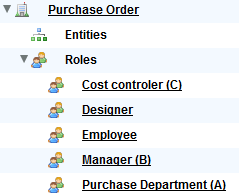
Configure the projects
Key rule: From the moment there are webinterfaces with different visibility rights, you will create separate projects.
When you build an application, at the end you usually have 3,4,5 different projects.
All these projects will be build around the main project Expense report - MAIN.
Key rule: In Expense report - MAIN project you will put all the webinterfaces employees and managers can see + all the reports + custom lists + collections.
As cost controler will have a separate interface to see all requests, there will be a dedicated project: Expense report - Cost controller.
To send emails, you will use a mail provider. When you open a trial account, you already have this Mail provider project. It contains a temporary mail server you will only use for test purposes. We do recommend you configure you own mail provider (see configure you Gmail provider) in this project.
As you intend to integrate with another system, you have to import/create providers and connectors to this system.
The best practice is to create a separate project for every system you'd like to integrate with. We'll create Connectors - SAP.
To be able to share resources between projects, you will use 'include projects'.
The structure of your projects will look like:
Legend: PRJ 'Project' / WIN 'Web interface' / PCS 'Process' / CLI 'Custom List' / COL 'Collection' / REP 'Report' / PVD 'Provider' / CNT 'Connector'
- PRJ_1: 'Expense report - MAIN'
- Webinterfaces
- WIN_1: 'Submit a new expenses request'
- WIN_2: 'Standard reports': Webinterface containing the reports for employees and task owners
- Processes
- PCS_1: 'Expense report approval'
- PCS_2: subprocess 'add a new record in SAP' used by P1
- Custom lists
- CLI_1: 'Expense types' used by W1
- Collections
- COL_1: 'Suppliers'
- Providers connectors: NONE
- Webinterface reports
- REP_1: 'my tasks' used by W1
- REP_2: 'my pending requests'used by W1
- REP_3: 'my approved requests'used by W1
- REP_4: 'my drafts'used by W1
- REP_5: 'all approved requests' used by W11
- REP_6: 'all rejected requsts' used by W11
- Process reports
- REP_11: 'all test processes'
- REP_12: 'all live processes'
- Projects
- PRJ_4: 'Connectors - SAP'
- PRJ_3: 'Mail provider'
- Webinterfaces
- PRJ_2: 'Expense report - Cost controller'
- Webinterfaces
- WIN_11: 'Cost controler reports': webinterface containing the reports for the cost controler
- Processes: NONE
- Custom lists: NONE
- Collections: NONE
- Providers ; connectors: NONE
- Webinterface reports: NONE
- Process reports: NONE
- Projects
- PRJ_1: Expense report - MAIN'
- Webinterfaces
- PRJ_3: 'Mail provider'
- Webinterfaces: NONE
- Processes: NONE
- Custom lists: NONE
- Collections: NONE
- Providers ; connectors
- PVD_1: 'Temporary mail server'
- Webinterface reports: NONE
- Process reports: NONE
- Projects: NONE
- PRJ_4: Project 'Connectors - SAP'
- Webinterfaces: NONE
- Processes: NONE
- Custom lists: NONE
- Collections: NONE
- Providers connectors
- PVD_11: 'SAP'
- CNT_1: 'Add a new purchase order'
- PVD_11: 'SAP'
- Webinterface reports: NONE
- Process reports: NONE
- Projects: NONE