New UI Layout
DigitalSuite Studio features a redesigned interface that improves navigation speed, spatial awareness, and content interaction across all modules. This page explains what has changed, what remains the same, and how to enable or disable the new layout.
Overview
The new UI replaces the full-page navigation model with a persistent sidebar, a sliding module panel, and a live home dashboard. Most content lists now support multiple view modes, and common actions are available directly on each item without navigating away.
Pages load significantly faster in the new layout. Because module panels open without triggering full-page reloads, navigation transitions are lighter and the platform responds more quickly across all areas.
Note: The new UI is opt-in during its rollout phase. Your existing data, projects, and configurations are not affected by switching layouts. See Enabling the New Layout.
What Stays the Same
The module structure of DigitalSuite Studio is unchanged. All modules remain accessible under the same categories:
- BUILD: Projects, Resources, Translator, Events
- MANAGE: Account, Roles, My Settings, Users
- MONITOR: Usage Report, Messages, Schedules, Logger
- IMPORT: Connector Library
Within each module, the same sections and data are available. Project Configuration still contains Web Interfaces, Processes, Reports, Collections, Composite APIs, Custom Lists, Connectors, Files, and Settings. Logger still has Access Logs, Process Logs, Composite API Logs, API Call Logs, Custom Logs, Version Logs, and Deleted Instance Logs.
What Is New
Navigation
The left sidebar now shows icon-only shortcuts to every module. Clicking a module opens a sliding side panel listing the module's sub-sections. The main content area updates independently, without replacing the full page.
A breadcrumb trail in the top bar always shows your current location, for example: My Project / Connectors / Providers and Connectors. This makes it easy to orient yourself and move back up the hierarchy at any point.
Because the sidebar and panel are persistent elements, navigating between sections no longer triggers a full-page reload. This is the primary reason pages feel faster and more responsive in the new UI.
Home Dashboard
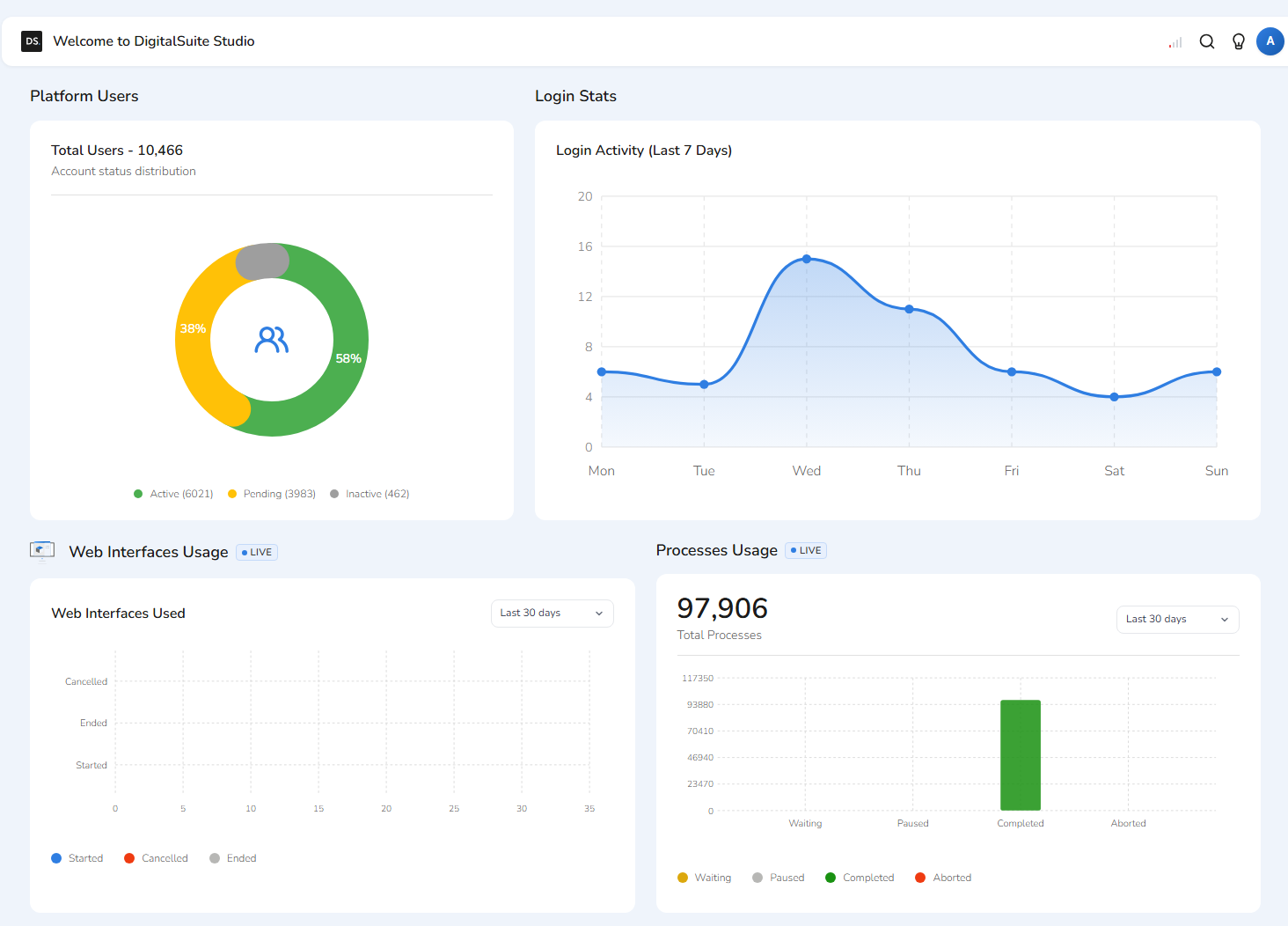
The home screen is now a live dashboard that displays a real-time overview of your environment:
- Platform Users — Total, active, pending, and inactive user distribution
- Login Stats — Login activity over the last 7 days
- Web Interfaces Usage — Started, cancelled, and ended interfaces (last 30 days)
- Processes Usage — Waiting, paused, completed, and aborted processes (last 30 days, live)
- Monthly Transactions — Business vs. integration transaction breakdown
- Database Usage — File storage and DB storage totals
- Projects – Favourites — Quick access to your starred projects
The home screen is no longer just a navigation menu — it now serves as a monitoring surface that gives you immediate visibility into your account's activity.
View Modes
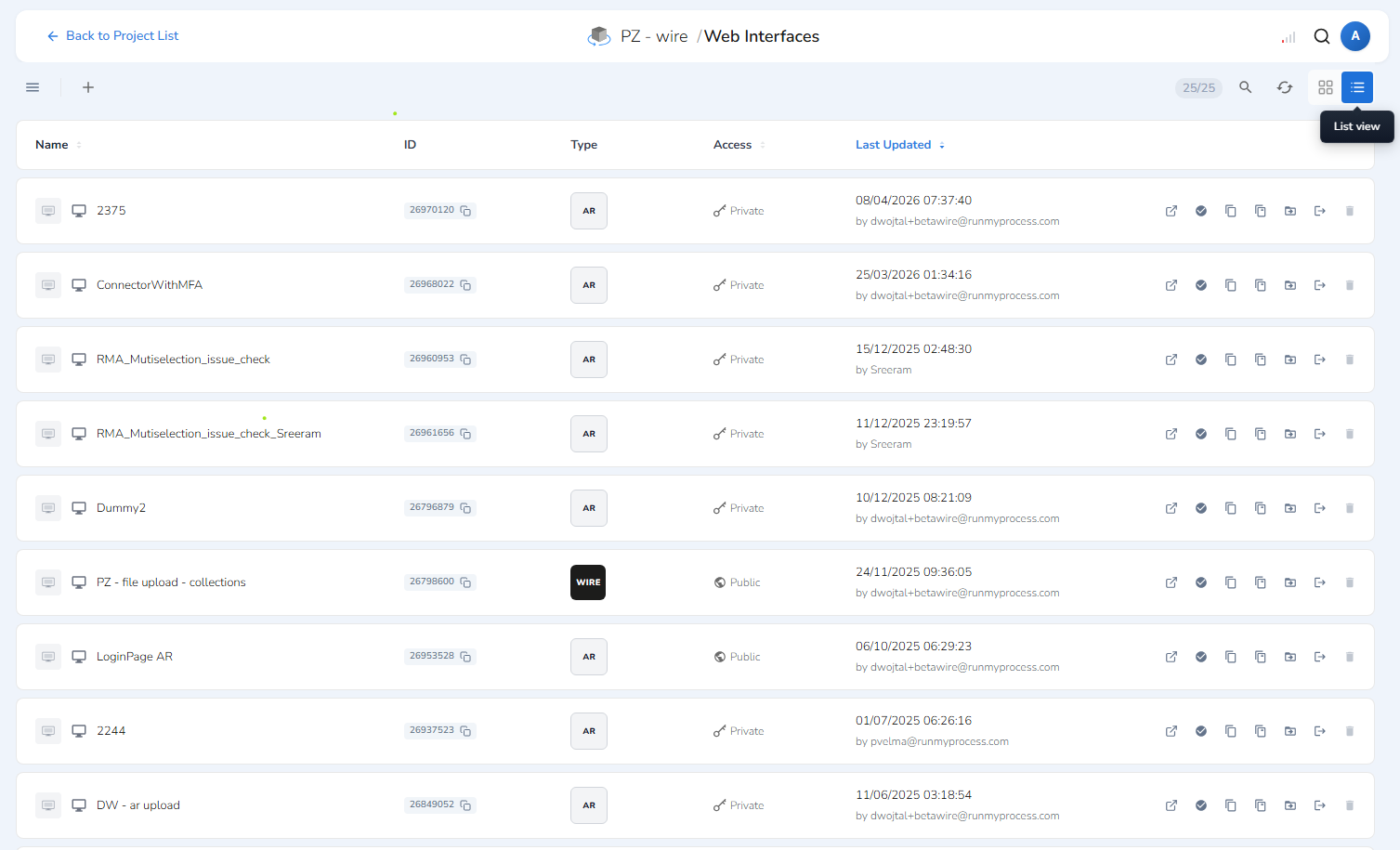
Most content lists in the new UI — including Projects, Web Interfaces, Processes, Reports, and Connectors — support three view modes. Use the toggle in the top-right toolbar of any list to switch between them.
List View
List view displays items in a table format with sortable columns: name, ID, type, access level, and last updated date. This is the most information-dense option and works best when comparing many items or sorting by a specific attribute.
Grid View
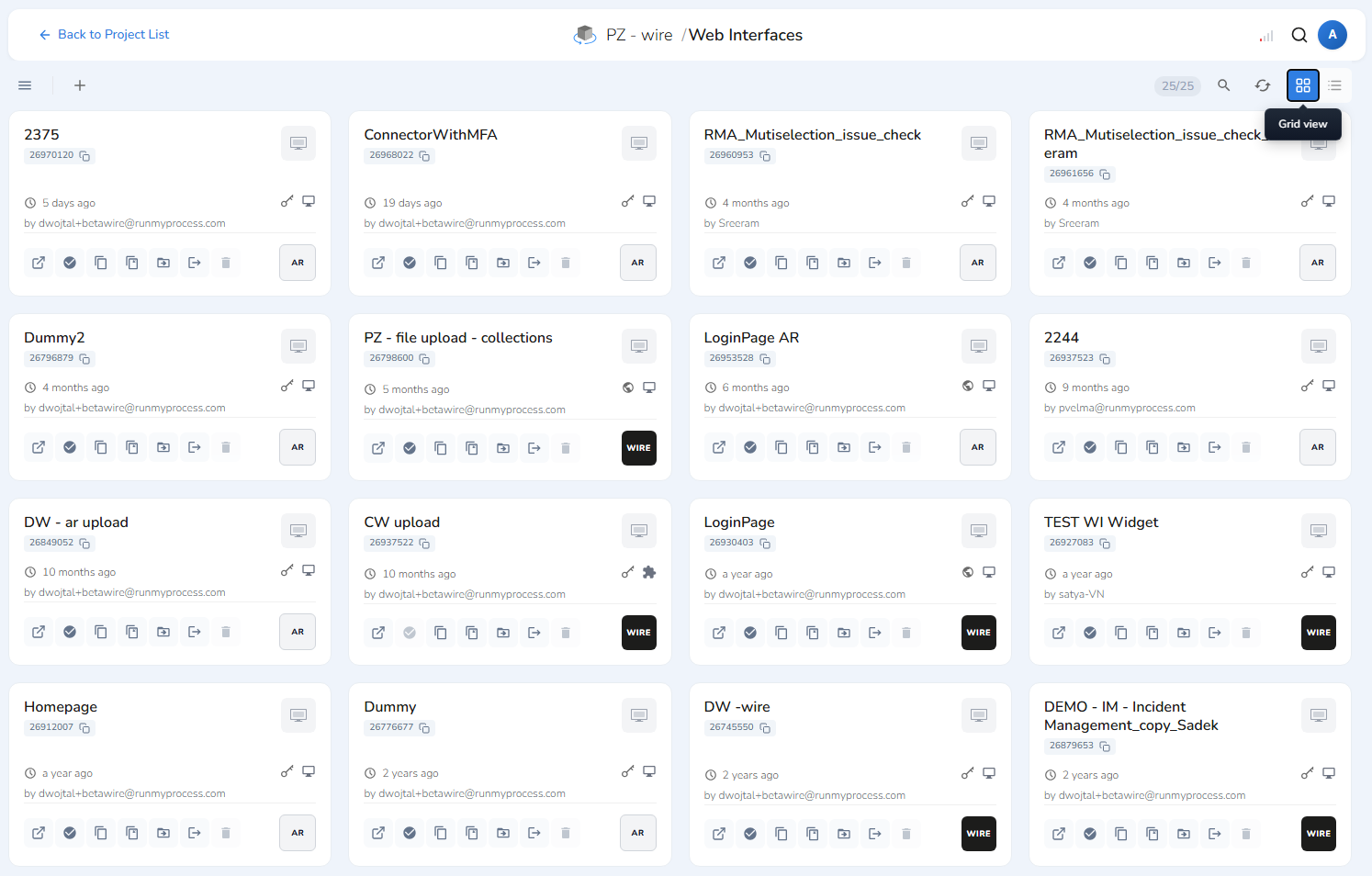
Grid view displays each item as a card showing its name, ID, project, last modified date, owner, and type badge. Cards make it easier to browse visually and identify items by name rather than by scanning column data.
Grid view is particularly useful in the Projects list. Project cards show the name, last modified timestamp, and owner at a readable size, which makes it faster to locate a recently updated project in a long list.
Advanced View
Advanced view uses a split-panel layout. The left side shows a filterable, searchable list of items; the right side displays the full detail record of the selected item — without navigating away from the list.
This eliminates the common problem of losing your place in a list every time you open a record. It is especially useful when reviewing multiple items in sequence, comparing configurations, or working through a list methodically.
Quick Actions
In the previous layout, acting on an item — opening it, duplicating it, or deleting it — typically required navigating into it first. In the new UI, the most common actions appear as inline icon buttons on each card or row, visible on hover.
The actions available vary slightly by resource type, but across most content lists you will find the following:
| Action | Description |
|---|---|
| ★ Add to Favourites | Pins the project to the Favourites section on the home dashboard for quick access. |
| ↗ Open | Opens the resource in the current view. |
| 🔗 Copy link | Copies a direct URL to the resource to the clipboard. |
| ⧉ Duplicate | Creates a copy of the resource within the same project. |
| ↑ Export | Exports the resource definition without opening the resource first. |
| ↓ Import | Imports a resource definition directly from the list. |
| → Move | Moves the resource to a different project. |
| 🗑 Delete | Deletes the resource after a confirmation step. |
For Web Interfaces, cards also display the interface type badge (AR or WIRE) and an access mode indicator (private or public), so you can identify and act on the correct interface without opening it.
Enabling the New Layout
The layout preference is saved per user and persists across sessions. You can switch between the old and new layouts at any time without losing any data.
To enable the new layout:
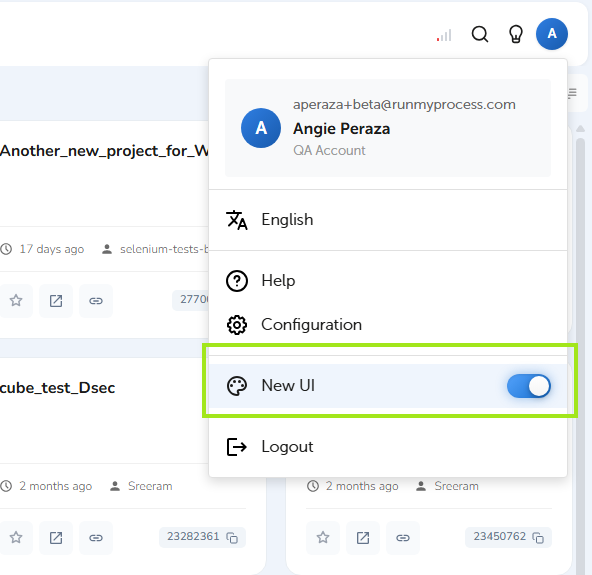
- Click your user avatar in the top-right corner of any page.
- In the dropdown menu, locate the New UI toggle.
- Set the toggle to on.
Result: The page reloads with the new layout active.
To revert to the original layout:
- Click your user avatar in the top-right corner.
- Locate the New UI toggle.
- Set the toggle to off.
Result: The page reloads with the original layout restored.
At a Glance
| Area | Original Layout | New Layout |
|---|---|---|
| Home screen | Static tile menu (BUILD / MANAGE / MONITOR / IMPORT) | Live dashboard with real-time metrics |
| Navigation | Full-page module views with horizontal tab bars | Persistent icon sidebar + sliding module panel + breadcrumbs |
| Page performance | Full-page reloads on every navigation | Panel-based navigation with significantly faster load times |
| Content lists | Table/list view only | List, Grid, and Advanced (split-panel) views |
| Item actions | Requires navigating into the item | Inline quick actions on hover, from the list |
| Projects – Favourites | Not available | Star any project to pin it to the home dashboard |