Storage Application
The Storage feature enables the monitoring and management of all files stored on the RMP platform for your account. It gives a consolidated view of how storage is consumed and who or what is consuming it, including:
- Total storage used by the account
- Total number of stored files
- Storage consumption per user
- Storage consumption per application (project)
- Detailed file inventory with owner, application, mode, creation date and visibility
- For each file, whether it is used by a web interface or work item
The Storage module provides tools to:
- View storage statistics and distribution.
- Search and filter stored files.
- Perform specific actions such as open, copy link, open the related web interface, export and delete files.
This feature ensures a comprehensive way to track storage usage, identify the largest consumers, and clean up files that are no longer needed.
How It Works
As files are uploaded to the RunMyProcess platform (through web interfaces, processes, Composite APIs or the API), their details are captured and organized within the Storage section. This module serves as a central hub to review storage consumption and manage stored files effectively.
The Storage application is organized into the following tabs:
| Tab | Description |
|---|---|
| Overview | Key storage indicators, storage distribution and top consumers. |
| By user | Storage consumption grouped by file owner. |
| By application | Storage consumption grouped by application (project). |
| Files | Detailed list of every stored file, with filters and actions. |
User Access Rights
Access to the Storage application is restricted to the ADMIN profile.
Using the Storage Application
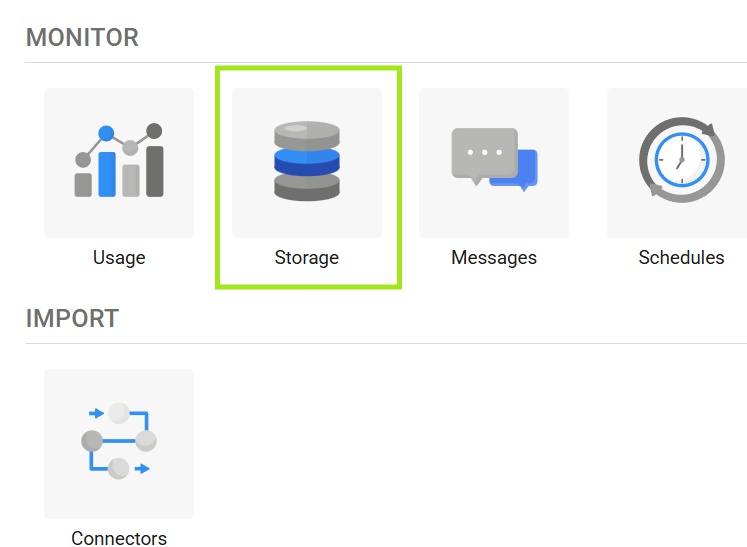
The Storage application is accessible from the MONITOR section on the RunMyProcess DIGITAL SUITE homepage.
Accessing Storage:
- Navigate to the MONITOR section on the homepage.
- Locate the Storage application as "Storage".
Overview
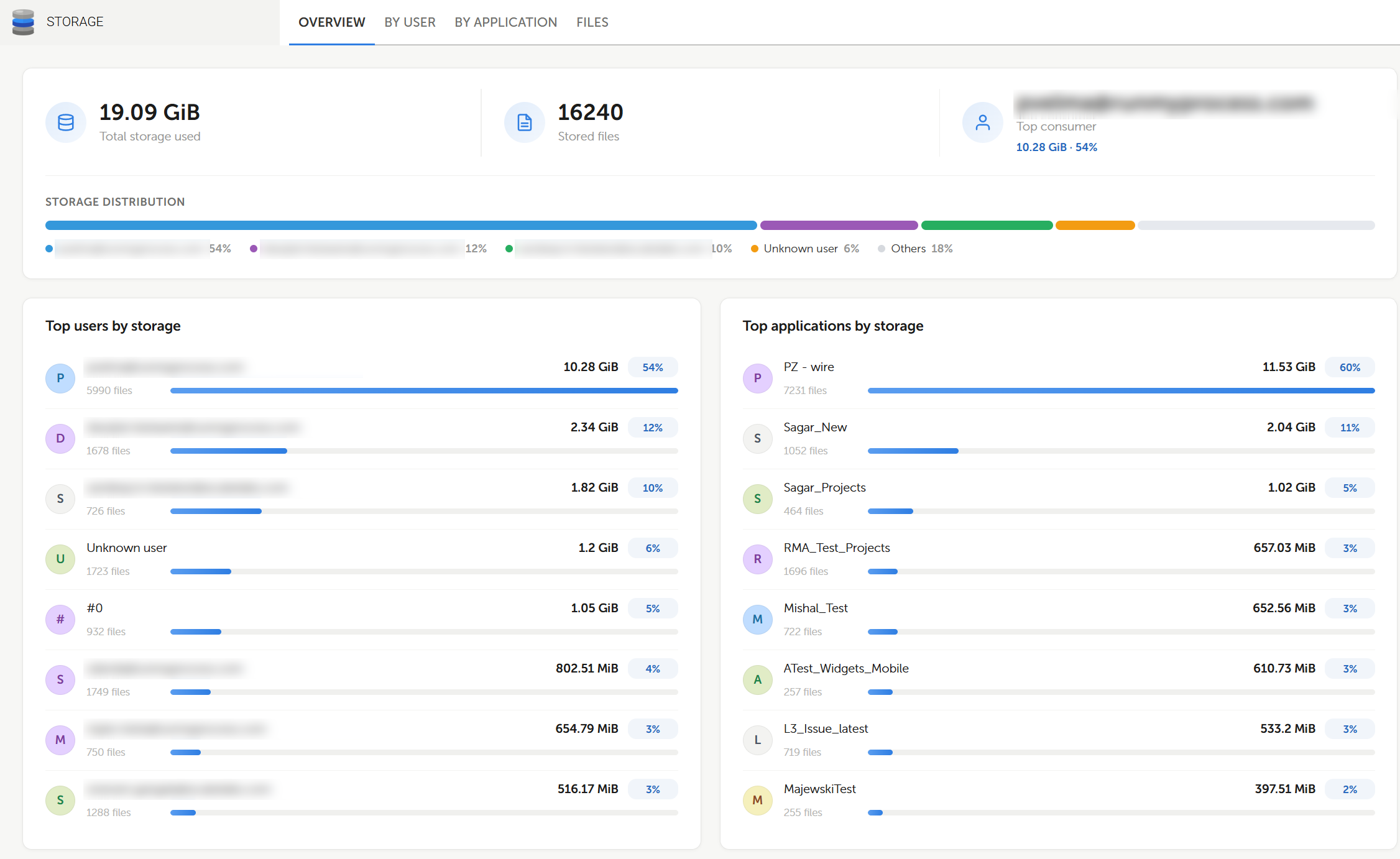
The Overview tab provides a summary of the storage consumption for the account. Key features include:
Key Indicators
- Total storage used: Total size of all files stored in the account (e.g., 19.09 GiB).
- Stored files: Total number of files stored in the account.
- Top consumer: The user consuming the most storage, with the amount used and its percentage of the total.
Storage Distribution
A horizontal bar showing how the total storage is split between the main consumers. The largest consumers are displayed individually, and the rest are grouped under "Others".
Files that cannot be attributed to an active user are grouped as follows:
| Case | Shown in Overview as | Shown in By user as |
|---|---|---|
| Files with no recorded owner | Unknown user | Unknown user |
| Files not owned by anyone | #0 | No owner |
| Files owned by a deleted user | #id (the deleted user's ID) | Deleted user (#id) |
Top users by storage
Lists the users consuming the most storage. For each user, the following information is displayed:
- User login (email)
- Storage used
- Percentage of the total storage
- Number of files
Top applications by storage
Lists the applications (projects) consuming the most storage. For each application, the following information is displayed:
- Application name
- Storage used
- Percentage of the total storage
- Number of files
By user
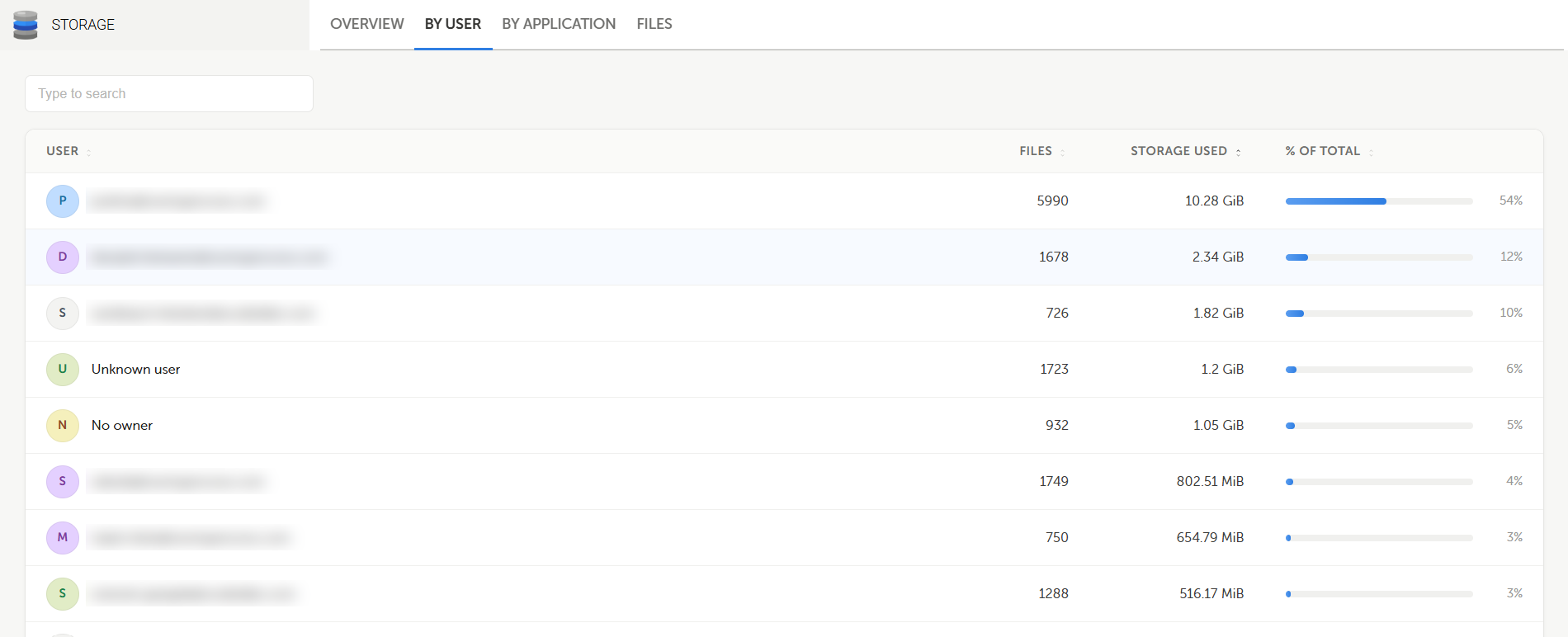
The By user tab displays the storage consumption of every user who owns files in the account.
Columns
- User: Login (email) of the file owner.
- Files: Number of files owned by the user.
- Storage used: Total size of the files owned by the user.
- % of total: Share of the account's total storage, shown as a bar and a percentage.
The list is sorted by Storage used (descending) by default.
Note: Files not owned by anyone are listed under "No owner", and files owned by deleted users are listed under "Deleted user (#id)". See Storage Distribution for details.
Additional Functionalities
Type to filter
Use the search box to filter the list by user login.
By application
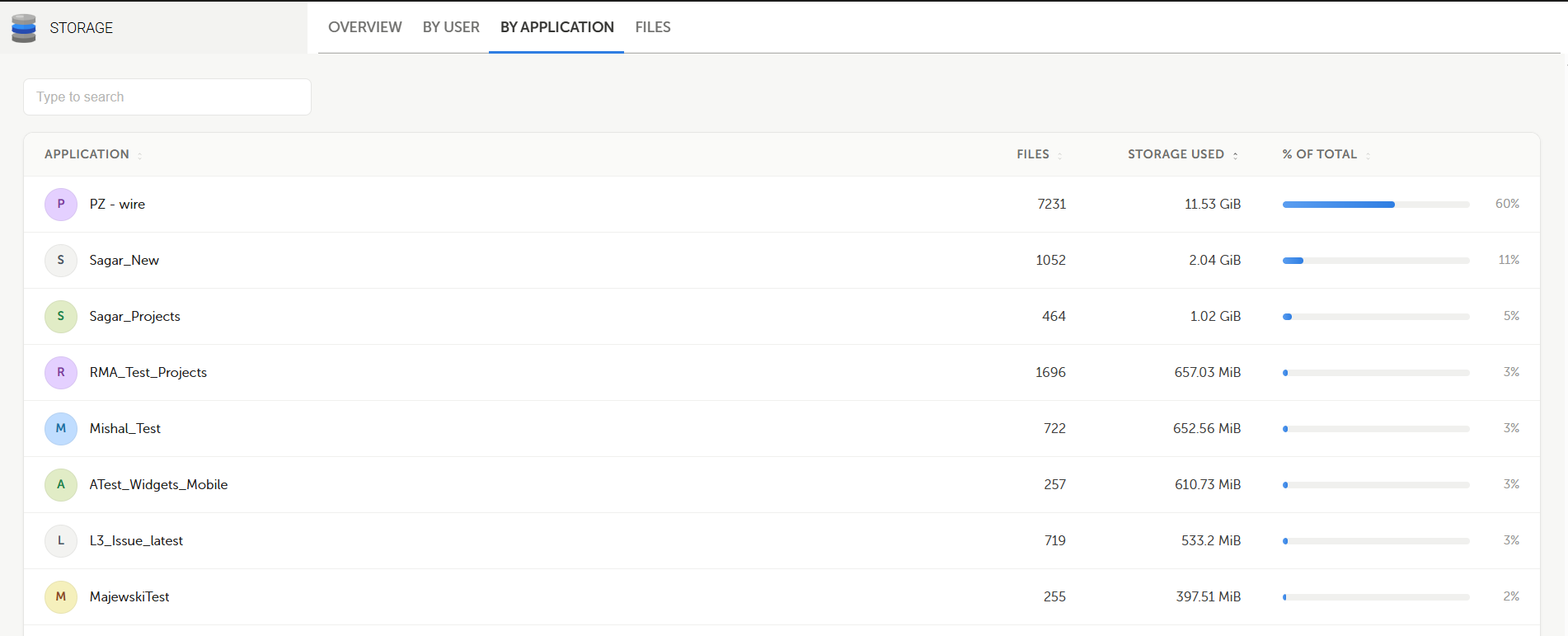
The By application tab displays the storage consumption of every application (project) that holds files in the account.
Columns
- Application: Name of the application (project).
- Files: Number of files linked to the application.
- Storage used: Total size of the files linked to the application.
- % of total: Share of the account's total storage, shown as a bar and a percentage.
The list is sorted by Storage used (descending) by default.
Note: Files that are not linked to any project are grouped under "Without application".
Additional Functionalities
Type to filter
Use the search box to filter the list by application name.
Files
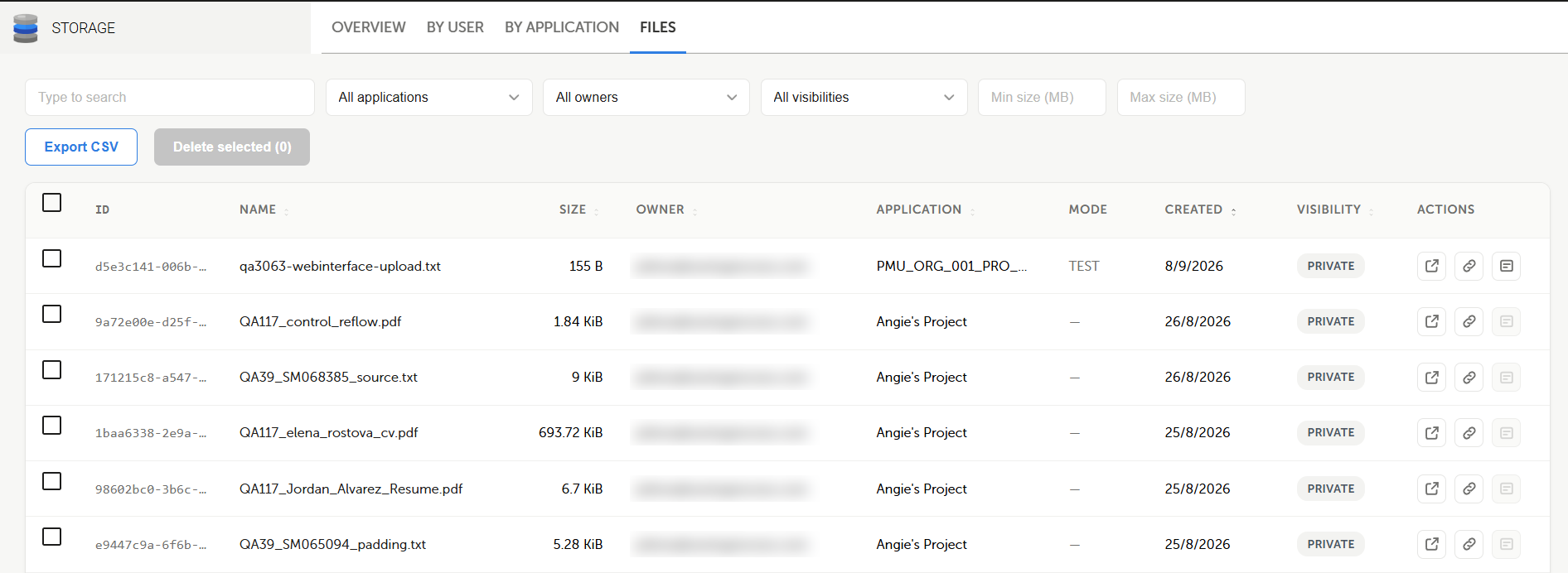
The Files tab provides detailed information about every file stored on the platform. Key features and functionalities include:
View Files
- Displays all stored files in the account.
- Files can be filtered by application, owner, visibility and size.
- Results are sorted by creation date (newest first) by default and are paginated.
File Columns
- ID: Unique identifier of the file.
- Name: File name, including its extension.
- Size: Size of the file.
- Owner: Login (email) of the user who owns the file.
- Application: Application (project) the file is linked to, or "Without application".
- Mode: The environment where the file was created (e.g., TEST). A dash (—) is shown when no mode is recorded.
- Created: Date the file was created.
- Visibility: Indicates whether the file is Public or Private.
- Actions: Actions available for the file (see below).
File Actions
Each file entry provides the following actions:
- Open file: Opens the file in a new browser tab.
- Copy link: Copies the file URL to the clipboard.
- Open web interface: Opens the web interface or work item that uses the file. If the file is not used by any web interface or work item, this option is disabled and displays the message "This file is not used by any web interface or work item".
Filters
- Type to search: Filter files by name.
- All applications: Show only the files linked to a specific application.
- All owners: Show only the files owned by a specific user.
- All visibilities: Show only Public or Private files.
- Min size (MB) / Max size (MB): Show only files within a size range.
Additional Functionalities
Export CSV
Exports the list of files to a Comma-Separated Values (CSV) file.
Delete selected
Deletes the selected files.
- Select one or more files using the checkboxes on the left (use the header checkbox to select all files on the page).
- Click Delete selected (n), where n is the number of selected files.
- Confirm the deletion.
Important: Deleting a file is permanent. Deleted files cannot be restored from the Storage application. Before deleting, use the Open web interface action to check whether the file is still used by a web interface or work item. Files flagged as "not used by any web interface or work item" are the safest candidates for clean-up.
Best Practices
- Review the Overview tab regularly to detect unexpected growth in storage consumption.
- Use the By user and By application tabs to identify the main consumers and agree on clean-up actions with their owners.
- In the Files tab, combine the Min size filter with the application or owner filters to find large files quickly.
- Export the file list to CSV before performing bulk deletions, to keep a record of what was removed.